
How To Use Scope Builder
Everything you need to turn a research request into a precise, structured Statement of Work — the shared brief that drives AI As Analyst, Primary Research, and AI TruthCheck™ scoring alike.
Unlike generic scoping tools, AITruthCheck's™ Scope Builder is purpose-built for generating a professional Statement of Work (SOW) tuned for competitive intelligence research. It draws on a proprietary database of 2,000+ best-practice research questions and topic areas — refined over Rauch Associates' 30+ years conducting primary competitive research — to help you define a sharper, more effective competitor study
Six Steps To A Complete SOW
Follow this sequence for a new engagement, from first input to a saved, ready-to-use SOW.
Answer three quick questions
Enter the Company you're researching, the Product to focus on, and the Region for the research. These become the fixed header on your SOW and anchor every comparison that follows.
Describe your need, or upload something you already have
Describe it in plain language and Scope Builder uses its No Upload — Build from Scratch path: it searches the web for the questions analysts typically ask, then pulls matching questions from our proprietary database of 2,000+ competitive research questions to write a full, structured brief — sections, questions, Section Context, and Background Notes — entirely new. Or upload an existing document (PDF, DOC, or DOCX) — Scope Builder reads its real structure (headings, bullets, sub-bullets, indentation), not just the raw text.
If you uploaded a document, choose your mode
Pick Recommended, Restructure, or Reformat depending on how much creative license Scope Builder should have with your content — from "actively improve and expand it" down to "change nothing but the formatting." See the comparison below.
Review your generated SOW
Generation typically takes 1–2 minutes. Your SOW streams in live, organized into numbered sections, main bullet questions, sub-bullets, a Section Context paragraph per section, and overall Background Notes. Live status updates show exactly where each question came from — your document, the proprietary database, or live web research.
Refine it with plain-language follow-ups
Ask for changes — "add a section on partner programs," "make the pricing questions more specific" — and Scope Builder returns the complete revised SOW every time, never a patched fragment. Follow-ups are applied on top of whichever mode you started with, so a Reformat-mode document won't suddenly gain unrequested new sections. Repeat as many times as you need.
Save and get your pricing estimate
Once your SOW is complete, you'll see a cost estimate for generating the full AI report based on it. Save as a PDF or Word document — this produces a client-ready file and a secure, one-time download link — or keep requesting follow-up changes first.
How Much Should Scope Builder Change?
This is the setting most worth understanding — it controls exactly how much license Scope Builder has with your content, from writing a brief entirely from scratch down to changing nothing but the formatting.
Build from Scratch
When To Use It
You don't have an existing document — you just want to describe what you're researching and let the builder create the whole thing.
What It Does
The builder searches the web for common research themes in your area, searches the internal questions database for matching questions, and builds a complete SOW from scratch — sections, questions, Section Context, and Background Notes, all newly written.
Recommended
When To Use It
You have an existing document to use as a starting point, but you want the builder to actively improve and expand on it — adding sections, questions, or context you didn't think of.
What It Does
The builder reads your uploaded document, then supplements it with web research and database questions. It has real freedom here — it may add new sections and new questions beyond what's in your document wherever it judges them valuable.
How It Handles Existing Content
- Existing questions may be added to, but your original questions are not removed.
- Existing Section Context and Background Notes may be revised or expanded — Mode 1 is allowed to improve on what you had, not just copy it forward.
- Anything missing entirely (a new section's Context, or Background Notes if your document didn't have any) gets added.
Restructure
When To Use It
Your document already has the right questions — you just want them formatted properly as a professional SOW.
What It Does
The builder reformats your document into standard SOW structure. Its editing authority is narrow and specific: it may add a standard opening phrase (e.g., "A description of...") to a bullet that doesn't already start with one, apply minor grammatical tidying, and apply the standard SOW layout (headings, bullets, sub-bullets). It will not add new sections or questions, or substantively reword or change the meaning of any question.
How It Handles Existing Content
- Existing Section Context and Background Notes are preserved exactly as written — the builder is mechanically prevented from altering them, even if it tries to.
- Anything genuinely missing (no existing Context for a section, or no Background Notes at all) gets added.
Reformat
When To Use It
Your document is already exactly the way you want it, content-wise — you only need it converted into proper SOW formatting.
What It Does
The builder applies SOW layout only — nothing else. Every section heading, main bullet, and sub-bullet is copied exactly as written, just restructured into the standard format. It will not add, remove, or reword any bullet, sub-point, or section, in any way, and will not search the web or the questions database.
How It Handles Existing Content
- Existing Section Context and Background Notes are preserved exactly as written — same guarantee as Mode 2.
- Anything genuinely missing gets added.
| New Sections | New Questions | Reword Questions | Existing Context | |
|---|---|---|---|---|
| No Upload | Builds from scratch | Builds from scratch | — | Builds from scratch |
| Mode 1 | ✓ Yes | ✓ Yes | ✓ Yes | May revise / expand |
| Mode 2 | ✗ No | ✗ No | Minor tidying only | Preserved exactly |
| Mode 3 | ✗ No | ✗ No | ✗ No | Preserved exactly |
Benefits of Using Scope Builder
- One brief, every downstream tool. AI As Analyst, primary research, and AI TruthCheck™ scoring all run off the same SOW — comparisons are always genuinely apples-to-apples.
- Governed, not ad hoc. Every SOW is generated under a fixed governance standard, so quality and format don't drift from analyst to analyst or engagement to engagement.
- You control the AI's creative license. The three-mode system lets you decide, explicitly, whether the AI can suggest new content or must stay strictly within your existing material.
- Nothing gets flattened. Document uploads preserve real structure — headings vs. bullets vs. sub-bullets, indentation — rather than treating your file as a wall of text.
- Instant cost visibility. A pricing estimate is generated automatically the moment your scope is final, so cost and scope are always considered together.
Formatting Your SOW Correctly
Prefer to write your own SOW instead of using Scope Builder? You can still use it with AI As Analyst — but it needs to follow a specific set of formatting rules to be read correctly. Follow the basics below to make sure your SOW isn't flagged
Required header fields
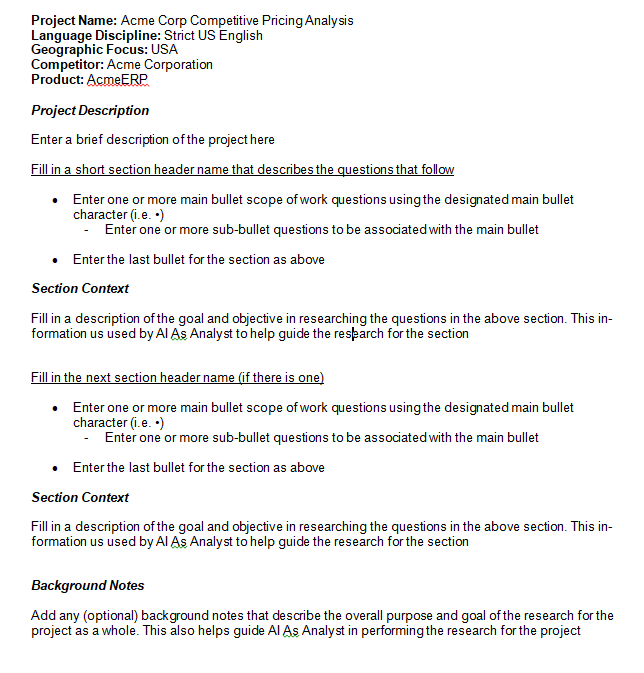
Within the first 20 lines, include each of the following on its own line with a value after the colon: Project Name:, Language Discipline:, Geographic Focus:, Competitor:, Product:. All five are required and none may be empty.
Project Description
Include a line reading exactly Project Description — on its own line, no bold/markdown, no colon — followed immediately by a paragraph describing the project.
Sections, bullets, and Section Context
Every section needs a section header immediately followed by its first bullet, at least one bulleted question, with the last question followed by a Section Context label followed by a short explanatory paragraph. At least one section with bullets must exist somewhere in the document.
Bullet characters — be exact
Main bullets use • (Word's standard round bullet); sub-bullets use a plain hyphen and space, "- ". Word's autocorrect is the most common culprit for breaking this — it silently converts a typed hyphen into an en-dash. Press Ctrl+Z immediately after typing if that happens, or disable it under Word Options → Proofing → AutoCorrect.
No literal markdown symbols
Don't type **bold** or __underline__ characters into the document. Use real Bold/Italic formatting (Ctrl+B / Ctrl+I) — literal asterisks or underscores can prevent section headers and metadata from being recognized at all.
Keep page footers out of the body text
Page numbers like "47 | Page" should be a true PDF/Word footer element, not text pulled into the body layer during export.
Background Notes — optional, but format it correctly if included
You don't need a Background Notes section at all — its absence is never flagged. If you do include one, the label itself must be exact and undecorated (Background Notes, not **Background Notes**); whatever content follows is unchecked and free-form.
Main Bullets
• (Word's standard round bullet)o*Sub-Bullets
"- "–—Example of A Properly Formatted SOW
Here's a quick reference showing the required header fields, section structure, main bullets and sub-bullets, and the Section Context / Background Notes labels in a properly formatted SOW.
Quick Pre-Upload Checklist
Project Name:,Language Discipline:,Geographic Focus:,Competitor:,Product:— all present, all with values, all in the first 20 linesProject Description— exact label, with a paragraph following it- Every section header sits directly above its first bullet
- Every section has at least one bullet and a Section Context block
- Main bullets use
•— neveroor* - Sub-bullets use
"- "— never an en-dash or em-dash - No literal
**or__anywhere in the document - No page-number footers embedded in the body text
- Background Notes: include it or skip it — just don't malform the label if you use it
Ready to build your first Scope of Work? Launch Scope Builder now and put these steps into practice.
